
ChatGPT
Connect Demandbase to ChatGPT to access Demandbase account, person, engagement, company, contact, technographic, hierarchy, and news data directly from a ChatGPT conversation.
Important: This article describes the ChatGPT Plugin Directory experience available as of July 16, 2026. Available options can vary based on your ChatGPT plan, workspace, role, region, and workspace policies.
Prerequisites for Connecting Demandbase to ChatGPT
Before you connect Demandbase to ChatGPT, make sure you have:
- A ChatGPT account that can install and use plugins.
- Access to the correct ChatGPT workspace.
- A Demandbase user account that can complete your organization's Demandbase sign-in flow.
- Demandbase MCP enabled for your organization. Contact your Demandbase Account Team if Demandbase MCP is not enabled.
If you use a managed ChatGPT workspace, your workspace administrator may need to make the Demandbase plugin available and enable the required app access for your role.
Step 1: Open the ChatGPT Plugin Directory
In ChatGPT, from the left navigation bar, select Plugins.
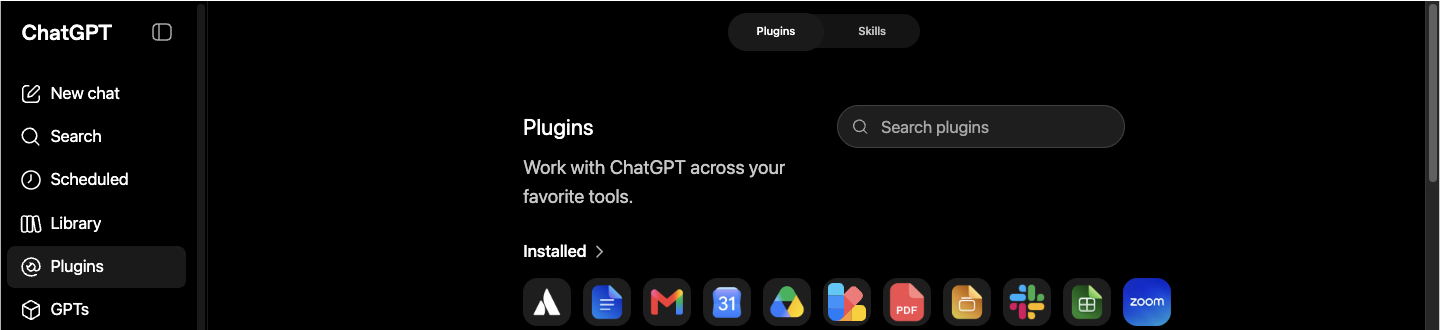
Step 2: Find the Demandbase Plugin
-
In Search plugins, enter
Demandbase. -
Select Demandbase.
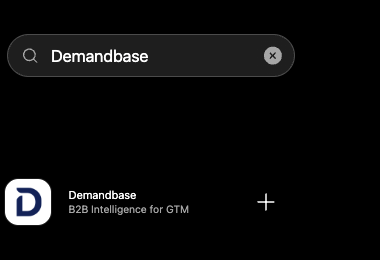
Step 3: Install the Demandbase Plugin
On the Demandbase plugin page, click Install plugin.
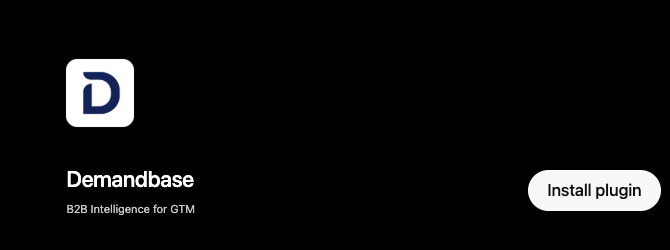
Step 4: Sign In to Demandbase
-
Review the connection information and data-sharing notice.
-
Click Sign in with Demandbase.
-
If prompted, complete the Demandbase sign-in and authorization flow.
Tip: If you already have an active Demandbase session, authorization may complete automatically and return you to ChatGPT.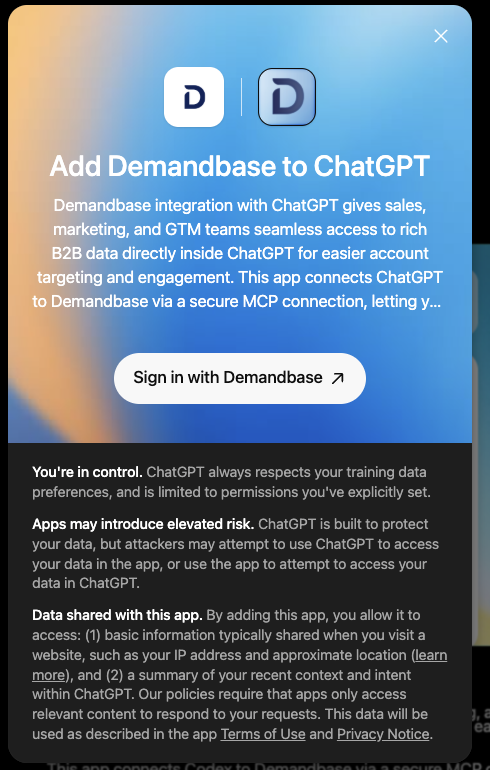
Step 5: Confirm the Demandbase Connection
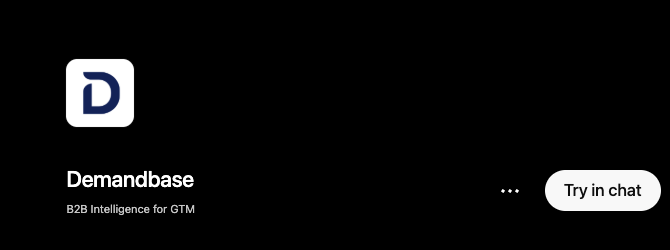
After authorization succeeds, the Demandbase plugin page displays Try in chat.
Step 6: Start Using Demandbase in ChatGPT
-
Click Try in chat.
-
In the new conversation, confirm that Demandbase is selected in the composer.
-
Edit the provided sample prompt, if available, or enter your own Demandbase question. For example:
List the top 10 VP contacts at Demandbase.Show me the most engaged accounts in the last 30 days.Find accounts in my target account list with no open opportunities.Show me companies using Snowflake with recent funding.
-
Before sending the prompt, confirm that the Demandbase badge appears in the composer.

Step 7: Verify the Demandbase Connection
Send a simple, read-only test prompt. A successful response confirms that ChatGPT can use the Demandbase plugin to retrieve Demandbase data.

Manage or Uninstall the Demandbase Plugin
Manage the Demandbase connection or remove the plugin from the Demandbase plugin page.
Open the Demandbase plugin page, select More options (...), and then select Manage or Uninstall.
Troubleshoot the Demandbase Connection to ChatGPT
| Issue | Resolution |
|---|---|
| Demandbase plugin is not available |
|
| Install plugin is disabled or missing |
|
| Demandbase sign-in fails or access is denied |
|
| Demandbase is installed but is not used in a response |
|
Updated 26 days ago