
Microsoft Copilot Studio
Connect the Demandbase Model Context Protocol (MCP) server to Microsoft Copilot Studio so your Copilot agent can access Demandbase tools and data.
Important: To use Demandbase MCP with Microsoft Copilot, end users must have access to Microsoft 365 Copilot Enterprise.
Prerequisites to Connect Demandbase to Microsoft Copilot Studio
Before you connect Demandbase to Microsoft Copilot Studio, make sure you have:
- Access to Microsoft Copilot Studio.
- Permission to create and publish Copilot agents.
- A Demandbase user account that can complete your organization's Demandbase sign-in flow.
- Demandbase MCP enabled for your organization. Contact your Demandbase Account Team or Demandbase Support if Demandbase MCP is not enabled.
Step 1: Sign in to Microsoft Copilot Studio
- Log in to the Microsoft 365 admin center.
- Open Microsoft Copilot Studio.
- Select the appropriate environment.
Step 2: Create a Copilot Agent
- From the left navigation bar, click Agents.
- Click Create > Blank Agent.
- Complete the following:
- Name: Enter a name for the agent.
- Description: Describe the agent.
- Agent Model: Select the model appropriate for your use case.
- Add instructions: See Step 3: Configure the Agent Instructions.
Step 3: Configure the Agent Instructions
Configure the agent instructions to help the agent select the appropriate Demandbase tools, request clarification when needed, and format responses consistently.
We recommend using the Demandbase MCP agent instructions. See Recommended AI Agent Instructions for Demandbase MCP.
Step 4. Add the Demandbase MCP tool
- Select the Tools tab.
- Click Add a tool.
- Under Model Context Protocol, click New Tool.
- Select Model Context Protocol as the tool type.
- Complete the following:
- Server Name: Enter a name for the server.
- Description: Describe the server.
- MCP Server URL: https://gateway.demandbase.com/mcp/servers/db-mcp
- Authentication: OAuth (Dynamic Discovery)
- Click Create.
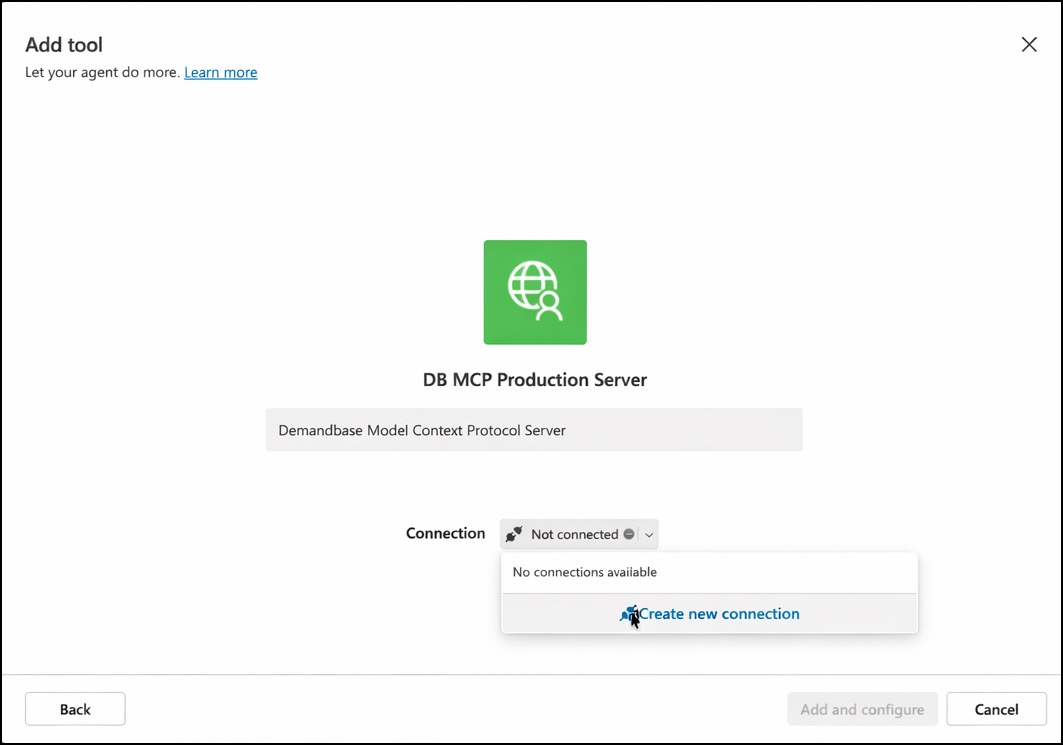
Step 5. Create the OAuth connection
-
Click Create new connection.
-
Click Create.
-
A browser window opens to begin the OAuth authorization flow.
Microsoft redirects you to the Demandbase authorization endpoint.
Step 6. Allowlist the OAuth redirect URI
During initial setup, Microsoft displays a 400 Bad Request error because the OAuth redirect URI has not yet been allowlisted by Demandbase. This behavior is expected the first time you create the connection.
- Copy the URL from the browser's address bar.
- Extract the
redirect_uriparameter from the URL. - Decode the
redirect_urivalue using a URL decoder, such as URL Decoder. - Send the decoded redirect URI to Demandbase Support and request that it be allowlisted.
- Wait for Demandbase Support to confirm that the redirect URI has been added to the allowlist.
After Demandbase allowlists the redirect URI, continue to the next step.
Step 7: Connect the Demandbase MCP Tool
- Return to Tools.
- Click Add a tool.
- Select the Demandbase MCP tool you created.
- Click Reconnect.
- Complete the Demandbase sign-in flow.
- After the connection is successful, click Add and configure.
The Demandbase MCP tools are now available to your Copilot agent.
Step 8: Verify the Demandbase Connection
- Refresh the Tools page.
- Verify that the Demandbase MCP tool displays a Connected status.
- Confirm that the available Demandbase tools appear.
- Test the agent with a prompt that requires Demandbase data.
A successful response confirms that the Copilot agent can access Demandbase tools through Demandbase MCP.
Updated about 1 month ago