
ChatGPT
Connect Demandbase to ChatGPT
Connect the Demandbase plugin to ChatGPT to access Demandbase account, person, engagement, company, contact, technographic, hierarchy, and news data directly from a conversation.
Note: These steps use the ChatGPT Plugin Directory experience available as of July 16, 2026. The options you see can depend on your ChatGPT plan, workspace, role, region, and workspace policies.
Prerequisites
Before you begin, make sure you have:
- A ChatGPT account that can install and use plugins.
- Access to the correct ChatGPT workspace.
- A Demandbase user account that can complete your organization's Demandbase sign-in flow.
- Demandbase MCP enabled for your organization. Contact your Demandbase Account Team if it is not enabled.
If you use a managed ChatGPT workspace, your workspace administrator may need to make the Demandbase plugin available and enable its required app for your role.
Step 1: Open the Plugin Directory
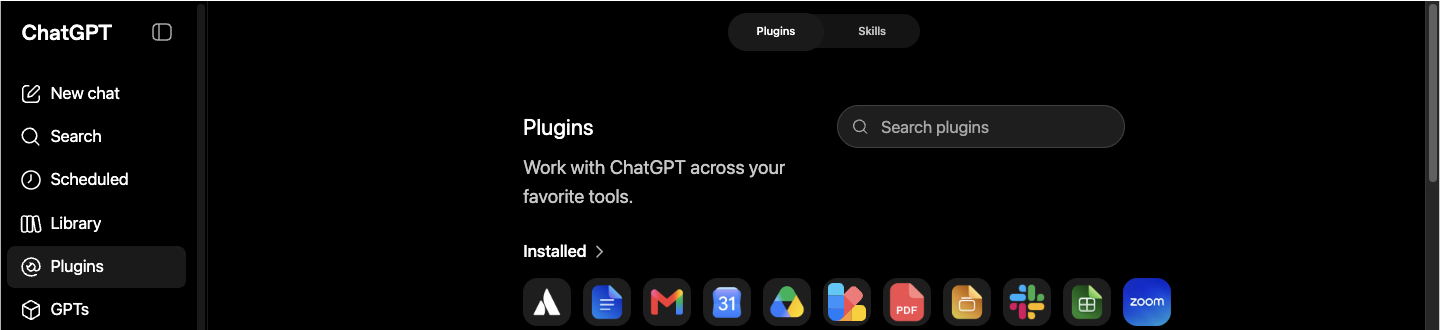
In ChatGPT, from the left navigation bar, select Plugins.
Step 2: Find Demandbase
-
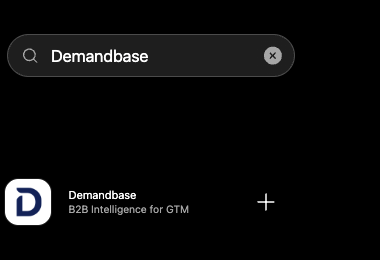
In Search plugins, enter
Demandbase. -
Select Demandbase.
Step 3: Install the Demandbase Plugin
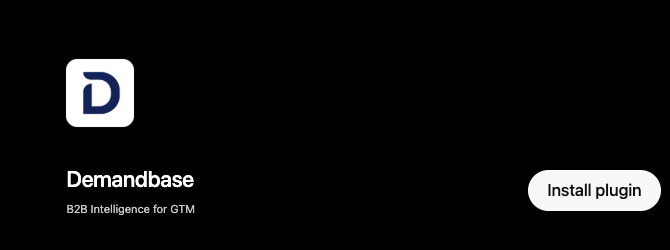
On the Demandbase plugin page, click Install plugin.
Step 4: Sign In to Demandbase
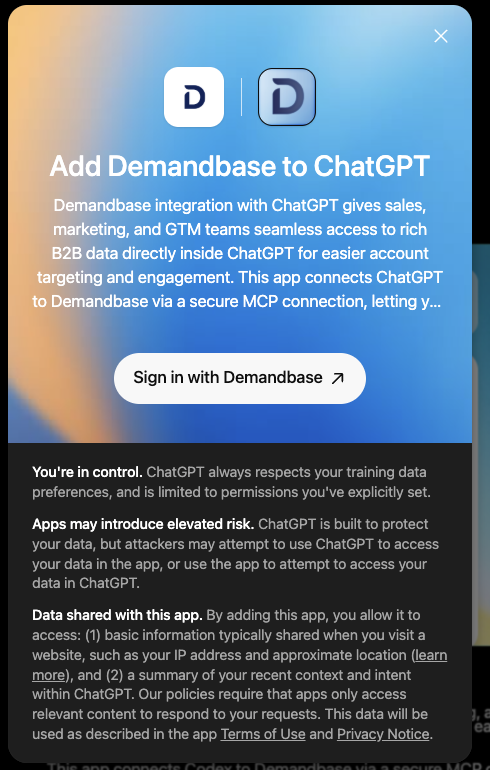
- Review the connection information and data-sharing notice.
- Click Sign in with Demandbase.
- If prompted, complete the Demandbase sign-in and authorization flow.
Tip: If you already have an active Demandbase session, authorization completes automatically and return you to ChatGPT.
Step 5: Confirm the Connection
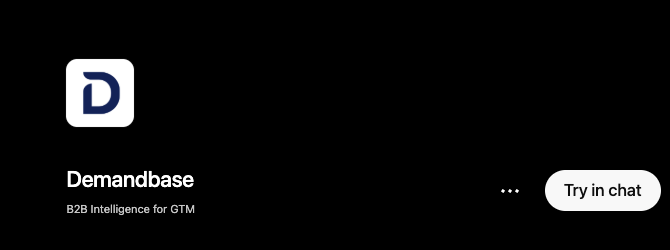
After authorization succeeds, the Demandbase plugin page displays Try in chat.
Step 6: Start Using Demandbase
- Click Try in chat.
- ChatGPT opens a new conversation with Demandbase selected in the composer. It may provide a sample prompt.
- Edit the sample or enter your own Demandbase question, for example:
List the top 10 VP contacts at Demandbase.Show me the most engaged accounts in the last 30 days.Find accounts in my target account list with no open opportunities.Show me companies using Snowflake with recent funding.
- Before sending the prompt, confirm that the Demandbase badge appears in the composer.

Step 7: Verify the Connection
Send a low-risk, read-only test prompt. A successful response confirms that ChatGPT can invoke the Demandbase plugin and retrieve Demandbase data.

Troubleshooting
I don't see the Demandbase plugin
- Confirm that you are signed in to ChatGPT and using the correct workspace.
- Ask your workspace administrator to verify the plugin installation policy and required app access for your role.
- Confirm that your ChatGPT plan, workspace, and region support the plugin.
Install plugin is disabled or missing
- The plugin may be restricted by your workspace policy, role, plan, or region.
- In a managed workspace, ask an administrator to review Workspace settings > Plugins and the Demandbase app's access settings.
Demandbase sign-in fails or access is denied
- Confirm that you are signing in with an authorized Demandbase account.
- Confirm that Demandbase MCP is enabled for your organization and user.
- If access is still denied, contact your Demandbase Account Team or Demandbase Support.
Demandbase is installed but is not used in a response
- Start from the Demandbase plugin page and select Try in chat.
- Confirm that the Demandbase badge appears in the composer before sending your prompt.
- If needed, open the plugin's More options menu to manage the connection.
Manage or uninstall Demandbase
Open the Demandbase plugin page, select More options (...), and then select Manage or Uninstall.
Updated 1 day ago